








 VidiKit (21-in-1 Toolkit) >





OnlyFans has become one of the most popular subscription-based content platforms, allowing creators to share exclusive videos, photos, and live streams with their fans and subscribers. While the platform offers incredible content, many users wonder how to screen record OnlyFans videos for offline viewing. This comprehensive guide will show you safe, effective methods to screen record OnlyFans content on Windows, Mac, iPhone, and Android devices while respecting creators' rights and platform guidelines.

- Part 1. Can You Screen Record OnlyFans?
- Part 2. How to Record OnlyFans Live Streams on Windows and Mac
- Part 3. How to Screen Record OnlyFans on iPhone
- Part 4. How to Record OnlyFans Videos on Android
- Part 5. Alternative Screen Recording Methods
- Part 6. FAQs about Screen Recording OnlyFans
Part 1. Is Screen Recording OnlyFans Legal and Safe?
Before learning how to screen record OnlyFans, it's crucial to understand the legal and ethical implications. Yes, you can technically screen record OnlyFans content, but there are important considerations:
- Personal Use Only: Recording OnlyFans content is generally acceptable for personal, non-commercial use
- No Redistribution: You cannot distribute, share, or monetize recorded content without creator permission
- Copyright Protection: OnlyFans content is protected by copyright laws and platform terms of service
- DRM Considerations: Some content may have Digital Rights Management protection
OnlyFans cannot detect screen recording and will not notify creators when you record their content. However, violating copyright laws or platform terms can result in account suspension or legal consequences.
Part 2. How to Record OnlyFans Live Streams on Windows and Mac
Available on Windows and macOS, Joyoshare VidiKit (21-in-1 toolkit) is a robust screen recorder that can be tailored to different recording needs. Adopted with advanced recording experience, it excels at recording not only screen, but also audio, webcam, and specific window. Developed with intuitive UI, both novices and experts can find it easy to navigate. To record OnlyFans live streams and videos with this mighty software, you can customize settings to make the final output meet your expectations, ensuring high quality, up to 4K screen recording.

- Record OnlyFans videos in up to 4K resolution with crystal-clear audio
- No recording time limits or watermarks added to your content
- Advanced settings for format, resolution, codec, and frame rate customization
- Multiple recording modes including full screen, window, and region capture
- Real-time annotation tools for adding notes during recording
Step 1 Open Screen Recorder in Joyoshare VidiKit
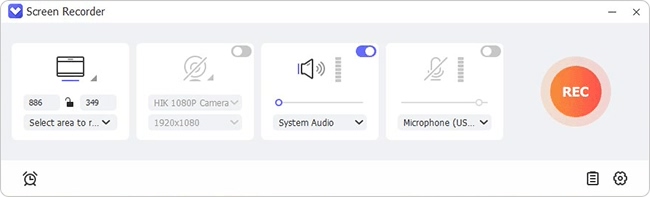
Download the latest version of Joyoshare VidiKit and get it launched on your computer. Navigate to Recorder section in its main interface and choose Screen Recorder.
 Note:
You can flexibly switch the recording mode in Joyoshare VidiKit based on your actual needs. Aside from "Screen Recorder", it's possible to capture target video from a specific OnlyFans window by using "Window Recorder" mode.
Note:
You can flexibly switch the recording mode in Joyoshare VidiKit based on your actual needs. Aside from "Screen Recorder", it's possible to capture target video from a specific OnlyFans window by using "Window Recorder" mode.Step 2 Select a Capture Area
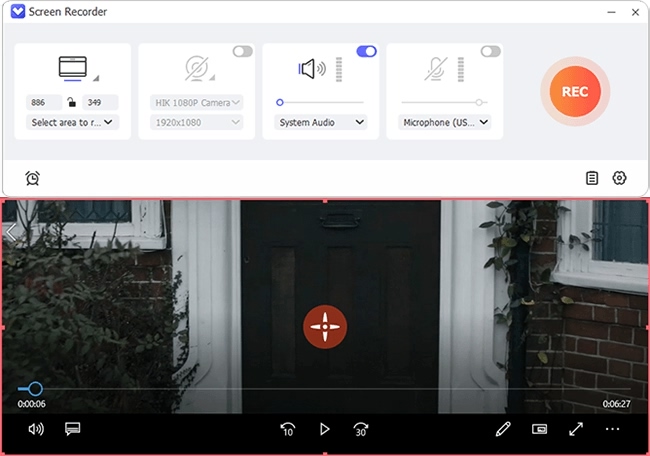
Simply click on "Select area to record" on the left side of the program interface to manually choose a recording area as you wish. You can access OnlyFans to better designate an area.
Step 3 Preset Recording Options
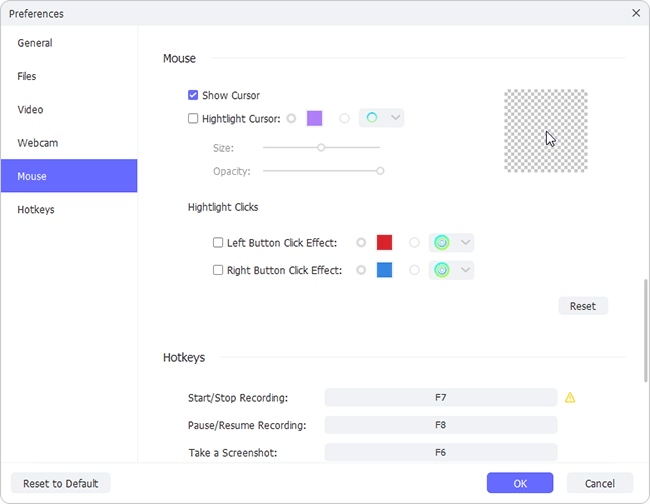
As per your needs, you can decide whether to enable webcam, system audio and microphone sound. Then click on the "Preferences" gear icon at the bottom right corner to further check more recording options, such as format, parameters, mouse effect, hotkeys, etc.
Step 4 Start to Screen Record OnlyFans
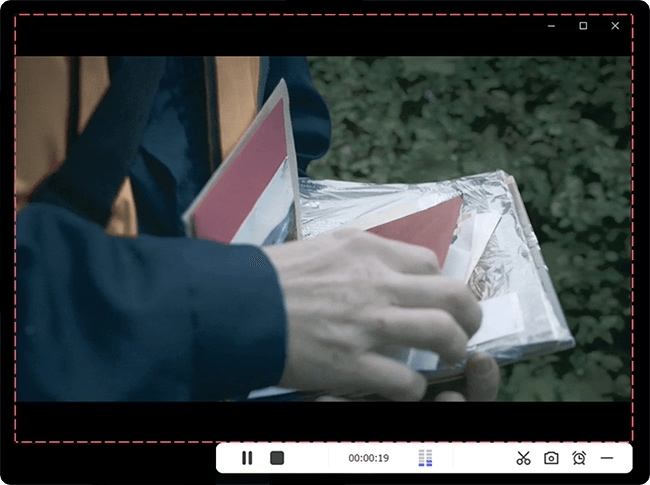
Now prepare target content in OnlyFans and click the REC button in Joyoshare program to initiate a recording process. Soon after, a recording menu bar will float, which allows you to snapshot, cut videos, schedule recording and annotate in the real time.
Step 5 Save and Check Recorded OnlyFans Videos
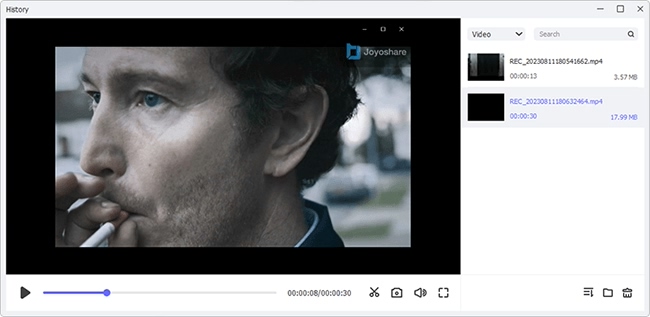
Once you click on the Stop button, Joyoshare VidiKit will end the recording and list your recorded OnlyFans videos to the History window. It's handy to play, rename, trim, and delete files.
Part 3. How to Screen Record OnlyFans on iPhone
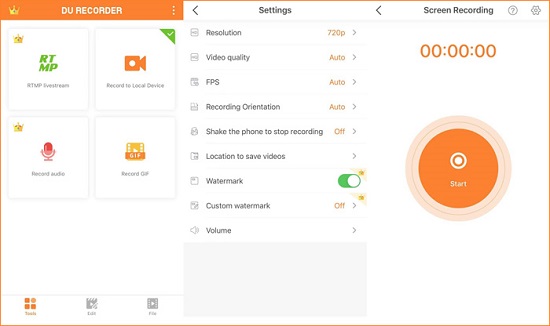
DU Recorder is not only a screen recorder but also a stream creator for iOS devices. With the assistance of it, you can record OnlyFans videos, gameplays, live shows, video calls, and more. It's convenient to capture internal and microphone audio at the same time. Also, based on your preferences, you can configure parameters such as resolution, video quality, FPS and more. To better manage all recorded files, DU Recorder even provides decent video editor to post-process videos in different aspects.
- 😄Pros
- Support recording screen, audio and facecam
- Livestream to YouTube, Twitch and Facebook with 1080p
- Provide practical video editing features
- ☹Cons
- Add watermark to video in free version
- Require in-app purchases
- App crashes occasionally
- Step 1: Download DU Recorder from App Store and install it on your iPhone.
- Step 2: Open OnlyFans app and prepare the content you'd like to record.
- Step 3: In DU Recorder app, head to Tools → Record to Local Device.
- Step 4: Tap the Settings icon at the right-top corner to confirm recording options.
- Step 5: Now tap the Start button and watch content in OnlyFans to begin recording.
- Step 6: Then tap Stop button to save the recorded videos to your Photos app.
Part 4. How to Screen Record OnlyFans on Android
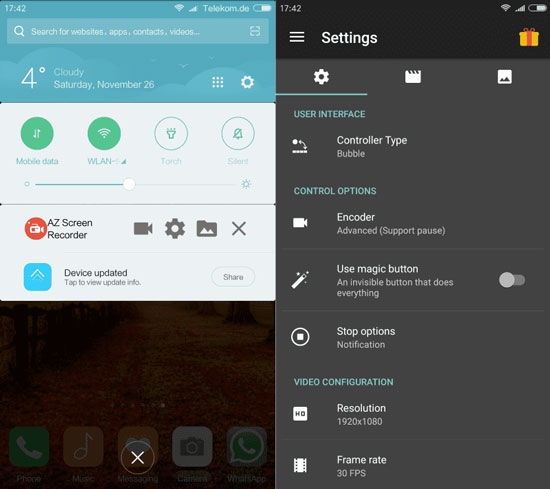
AZ Screen Recorder is a popular tool for Android users. It supports screen recording, screen capture, live streaming and video editing. It has the ability to record OnlyFans videos with audio simultaneously at up to 1080p resolution. Importantly, you don't have to worry about the recording duration and watermark. Its stunning video editor can polish the recorded content from OnlyFans, such as add subtitles, trim, crop, rotate, merge, compress, add BGM, etc.
- 😄Pros
- Screen record videos with audio
- Support recording with facecam
- Draw on screen while recording
- Easy-to-use video editing tools
- No watermark and no time limits
- ☹Cons
- Require in-app purchases
- Contain ads in the free version
- Step 1: Download AZ Screen Recorder from Google Play Store, install it and grant permissions.
- Step 2: Open OnlyFans app to get desired content ready for recording.
- Step 3: Launch AZ Screen Recorder and tap Videos & Settings to customize recording options.
- Step 4: Now tap on Record in AZ Screen Recorder and play content in OnlyFans app.
- Step 5: Once done, tap on the Stop button and further edit recorded video in the way you like.
Part 5. Alternative Screen Recording Methods
Beyond dedicated screen recording software, several alternative methods can help you screen record OnlyFans content effectively:
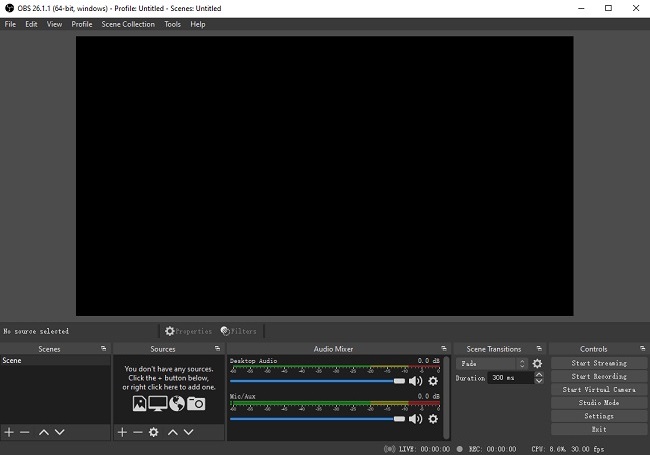
1. OBS Studio (Free & Open Source)
OBS Studio is a powerful, free alternative for recording OnlyFans videos on desktop. It offers professional-grade features but has a steeper learning curve.
2. Browser Extensions
Extensions like Screenity offer browser-based recording solutions that can capture OnlyFans content directly within your browser.
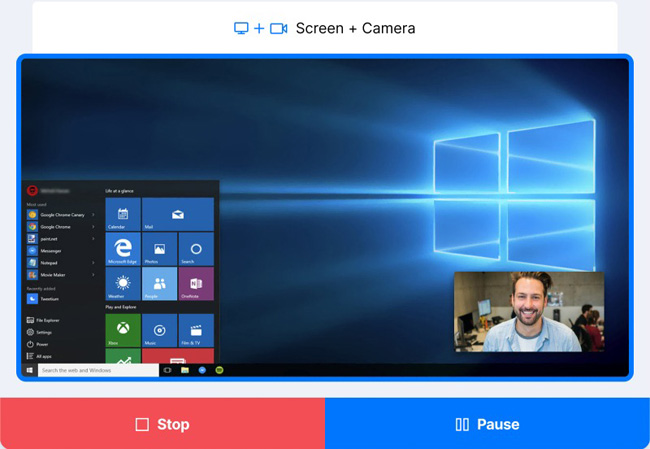
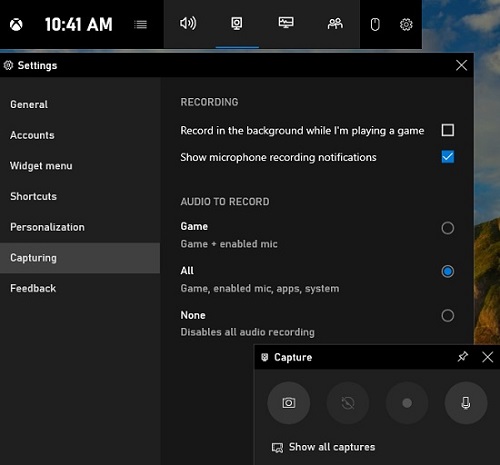
3. Game Bar (Windows 10/11)
Windows users can press Win + G to access Game Bar, which includes basic screen recording functionality suitable for capturing OnlyFans content.
Part 5. FAQs about Screen Recording OnlyFans
Q1: Can OnlyFans detect screen recording?
A: No. OnlyFans cannot detect screen recording and will not send notifications to the creators. However, bear in mind not to distribute authorized recordings. If possible, get permission from the creator first.
Q2: Why is OnlyFans screen record not working?
A: You can't screen record OnlyFans due to the following reasons:
- DRM Video Protection: OnlyFans restricts users from downloading and copying content.
- App Permissions: The selected OnlyFans screen recorder lacks necessary permissions for recording.
- Device Limitations: Some old devices may have hardware limitations that hinder screen recording.
- Security Measures: OnlyFans may deploy some security measures to protect creators' content from being recorded.
Q3: Is it illegal to screen record OnlyFans content?
A: Recording OnlyFans content for personal, non-commercial use is generally acceptable. However, distributing, sharing, or monetizing recorded content without creator permission violates copyright laws and OnlyFans terms of service, which can lead to legal consequences.
Q4: What's the best quality for recording OnlyFans videos?
A: For optimal quality when screen recording OnlyFans, use 1080p resolution with 30fps. Higher settings like 4K may be unnecessary since most OnlyFans content is streamed at 1080p or lower quality.
Conclusion
Learning how to screen record OnlyFans content safely and effectively requires the right tools and understanding of legal considerations. Whether you're using Joyoshare VidiKit on desktop, built-in features on mobile devices, or alternative methods like OBS Studio, the key is to respect creators' rights and use recorded content only for personal enjoyment.
Remember that while screen recording OnlyFans is technically possible, always prioritize ethical usage and comply with platform terms of service. The methods outlined in this guide provide reliable solutions for capturing your favorite content while maintaining respect for creators' intellectual property.