








 VidiKit (21-in-1 Toolkit) >





Fambase (Live & Group Chat) is a popular communication application that provides a unified platform for all members, including families, friends, and fans. It can well support group chat, live streaming, content sharing and ephemeral messages that disappear after 24 hours. Sometimes, you might come across some interesting or impressive on Fambase, but you might worry that it will be deleted or disappear. So, screen recording comes into your mind. It doesn't matter if you don't know where to get started. Follow us in this post and learn how to screen record on Fambase on different devices.

- Part 1. How to Screen Record on Fambase on PC/Mac
- Part 2. How to Record Fambase on iPhone
- Part 3. How to Record Fambase on Android
- Part 4. FAQs about Screen Recording Fambase
Part 1. How to Screen Record on Fambase on PC/Mac
Want to screen record Fambase on your computer? Sure, this is workable. Here Joyoshare VidiKit is a decent Fambase recorder. It helps you to record screen, system audio, microphone sound, webcam, specific window and gameplay. With its assistance, you can mirror your phone screen to PC and then record without black screen. There are many stunning and convenient features you can utilize, such as scheduling recording, customizing hotkeys, highlighting cursors, taking snapshots, adding annotations, etc.


Step 1 Mirror Your Phone to a Computer
To avoid recording Fambase with black screen, you have to first mirror your phone to your computer. To do this, open Fambase on your phone and access desired content. Then, simply tap Screen Mirroring on iPhone's Control Center or Screen Cast on Android's Quick Settings panel.
Step 2 Activate Screen Recorder in Joyoshare VidiKit
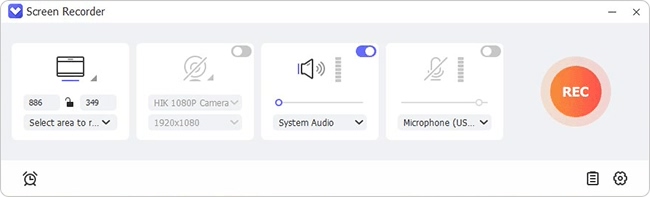
Now get the latest version of Joyoshare VidiKit downloaded and installed on your computer. Once it is launched, go to the Recorder panel in the left column and open Screen Recorder.
Step 3 Set a Matchable Recording Area
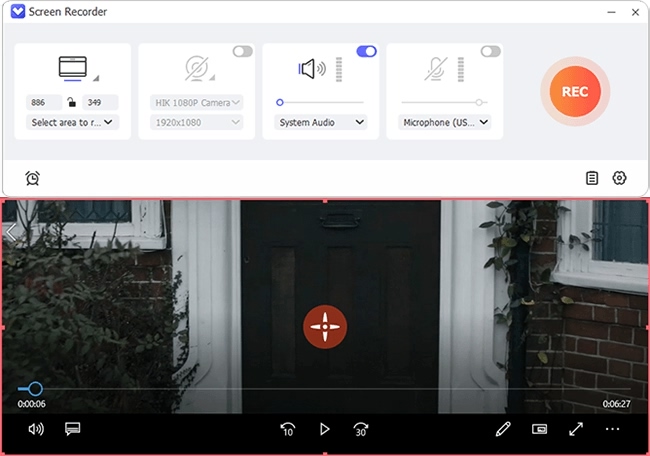
In the program, click Select area to record to decide which area to record further. You can adjust the recording area based on the Fambase screen.
Step 4 Confirm Recording Options
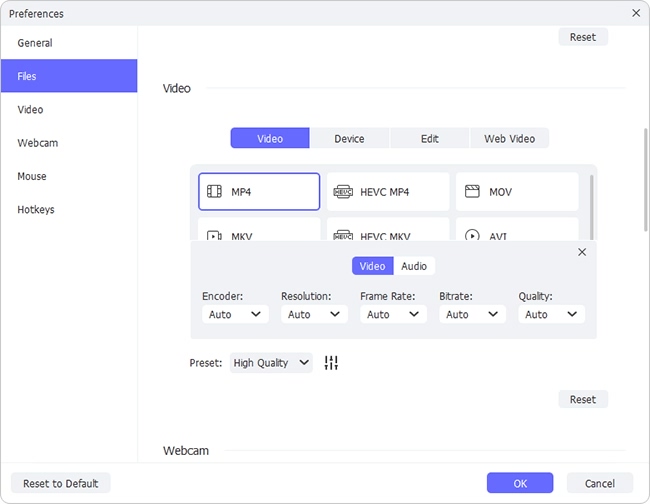
You can enable system audio and microphone sound as per your needs. Afterwards, click on the gear icon (Preferences) to confirm more recording options, including output format, webcam, mouse effect, hotkeys, and more.
Step 5 Start to Screen Record Fambase
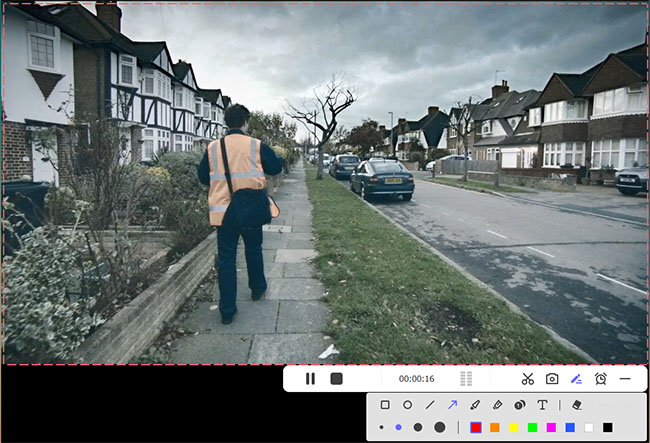
Simply click the REC button in Joyoshare VidiKit to begin recording content from Fambase. By using the floating recording menu bar, you can cut videos, take snapshots, set schedule, and annotate in the real time.
Step 6 Save Recorded Fambase Video(s)
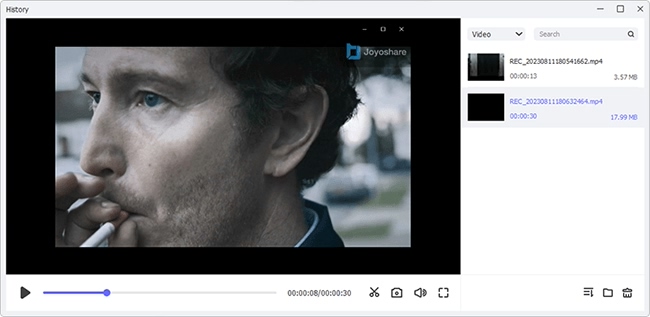
Once done, click the Stop button to save recorded Fambase video(s) to a local folder on your computer. You can see all recordings in the list under History window of Joyoshare VidiKit and making further edits at your disposal.
Part 2. How to Record on Fambase on iPhone
With a screen recorder built into the device, iPhone makes screen recording a simple thing to be done quickly. Now you can see how it works to record Fambase.
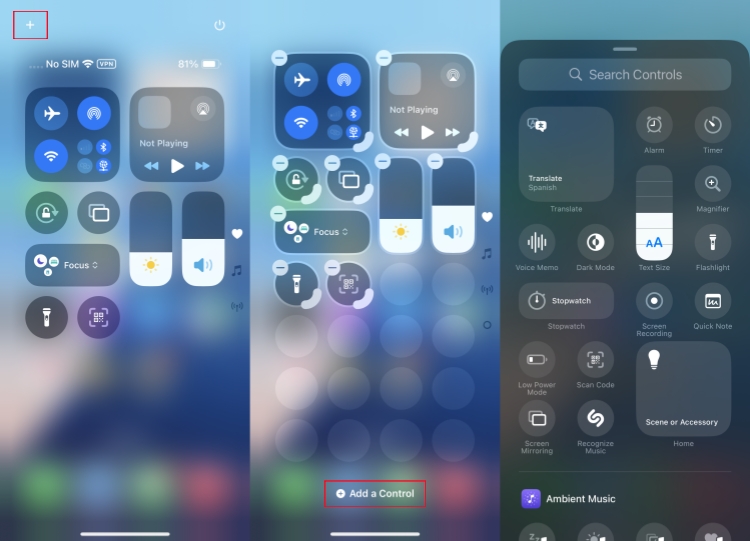
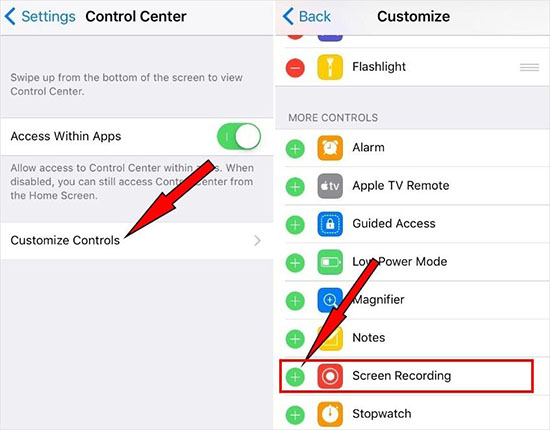
- Step 1: If you are using the screen recording function for the first time, you should add it to Control Center.
- 👉 For iOS 18 and later: Swipe to open Control Center, tap + at the top left corner. Then tap + Add a Control and select Screen Recording.
- 👉 For iOS 17 and earlier: Simply go to Settings → Control Center and then tap the green + icon in front of Screen Recording to add it to Control Center.
- Step 2: Open Fambase app on iPhone and navigate to the content you want to record.
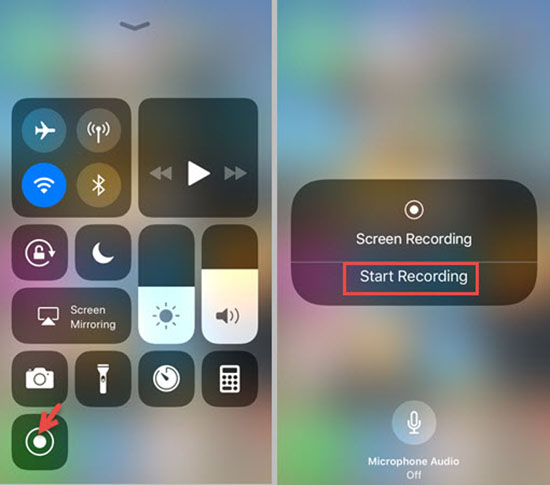
- Step 3: Swipe down from the top-right corner of your screen to access Control Center, and then tap the Screen Recording icon.
- Step 4: A three-second countdown will begin, after which your iPhone will start recording Fambase. A red bar or indicator will appear at the top of the screen.
- Step 5: Tap the red recording bar at the top and then tap "Stop" button to end recording. The final video will be saved to your Photos app.
Part 3. How to Screen Record Fambase on Android
Nearly all modern Android devices come with a pre-installed screen recorder under Quick Settings panel. You can use this default tool to record Fambase on your mobile phone.
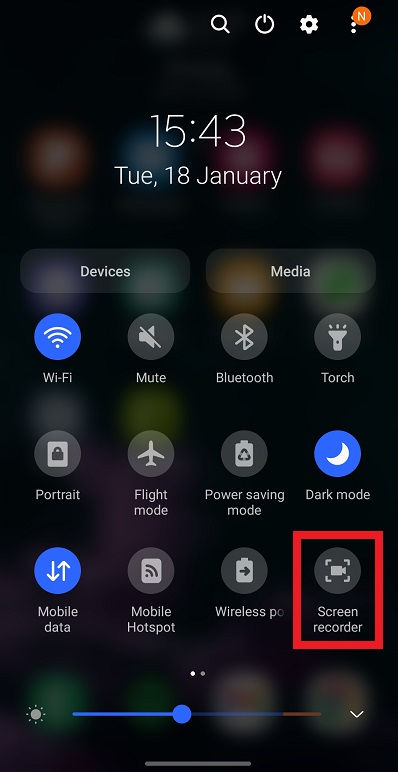
- Step 1: Open Fambase app on your device and get desired content ready.
- Step 2: Access Quick Settings panel and find Screen recorder.
- Step 3: Based on different phones' settings, you may need to further set up sound preference.
- Step 4: Simply tap "Start recording" to screen record Fambase.
- Step 5: Once finished, tap the Stop button to end recording and save Fambase video to Gallery on your Android phone.
Part 4. FAQs about Screen Recording Fambase
Q1: Why does Fambase display a black screen when recording?
A: In most cases, this is caused by a built-in DRM protection feature in the Fambase app. It is designed to prevent users from recording protected video content.
Q2: Can Fambase detect screen record?
A: No. Fambase cannot detect and block screen recording.
Q3: Does Fambase notify screen recording?
A: No. Fambase doesn't send notifications to creators when a screen recording is made or a screenshot is taken.
Q4: Can you screen record on Fambase?
A: Yes. You can screen record on Fambase on your mobile phone by using the built-in screen recording feature. If you'd like to initiate a recording assignment on your computer, you can mirror your phone and then use Joyoshare VidiKit to do that.
Conclusion
After reading this post, you might have a general idea about how to screen record on Fambase. As you can see, it's pretty easy to record video calls, messages, live streams or something else on your iPhone, Android or PC. Now, it's your time to start recording and enjoy content offline.