








 VidiKit (21-in-1 Toolkit) >





Tired of holding down the recording button on Snapchat? Admittedly, this is a common frustration for Snapchat creators, restricting movement and compromising video stability. You may wonder how to record on Snapchat without holding the button. To produce professional and engaging content, such as showcasing a new dance, a cooking demo, or OOTD, a hands-free approach is essential. Whether you are using an iPhone, Android, or even your computer, there are several ways in this post to help you record without worrying about your hands being tied up.
- Way 1. Use Lock Feature to Record on Snapchat without Holding
- Way 2. Use Timer to Record on Snapchat without Holding
- Way 3. Use AssistiveTouch to Record on Snapchat without Holding on iPhone
- Way 4. Record on Snapchat without Holding on Android
- Way 5. Record on Snapchat without Holding on PC
Way 1. Use Lock Feature to Record on Snapchat without Holding
Thankfully, Snapchat comes with a built-in hands-free recording functionality for both iOS and Android users. This solution has proven to be effective and straightforward. Now let's see how to record a Snapchat without holding the button using this method.
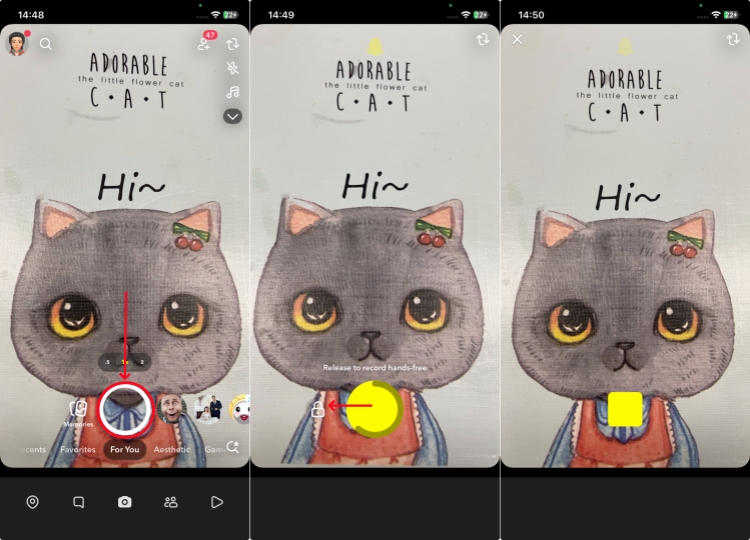
- Step 1: Launch Snapchat on mobile phone and select a desired video filter.
- Step 2: Then press and hold the Record button at the bottom of the screen.
- Step 3: Once the recording begins, slide your finger toward to the left lock icon.
- Step 4: As prompted, release your finger to record hands-free. Snapchat will continue recording automatically.
- Step 5: As long as you record whatever you want, simply tap the recording button at the bottom of the screen again.
Way 2. Use Timer to Record on Snapchat without Holding
Obviously, if you press the recording button on Snapchat and slide to the lock icon, you will inevitably record some of your preparation process. In this case, the Snapchat video timer is an excellent alternative choice, as it can automatically start and stop the recording based on the duration you have set.
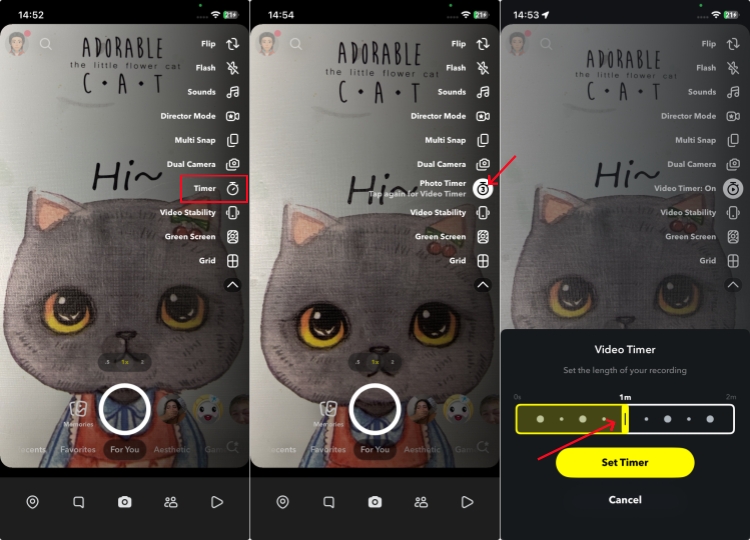
- Step 1: Open the camera screen of Snapchat, and tap the v icon on the right toolbar to expand all the options.
- Step 2: Choose Timer icon and tap it again to activate video timer.
- Step 3: Now set the length of your recording, up to 2 minutes.
- Step 4: Once confirmed, tap "Set Timer" button at the bottom.
- Step 5: Tap the Record button. You can record on snapchat without holding the button and automatically stop when the timer gets over.
Way 3. Use AssistiveTouch to Record on Snapchat without Holding
If you are using Snapchat on an iPhone, you can try another workaround called AssistiveTouch. This stunning feature allows you to pre-set an operation gesture, so you no longer need to keep long-pressing the recording button.
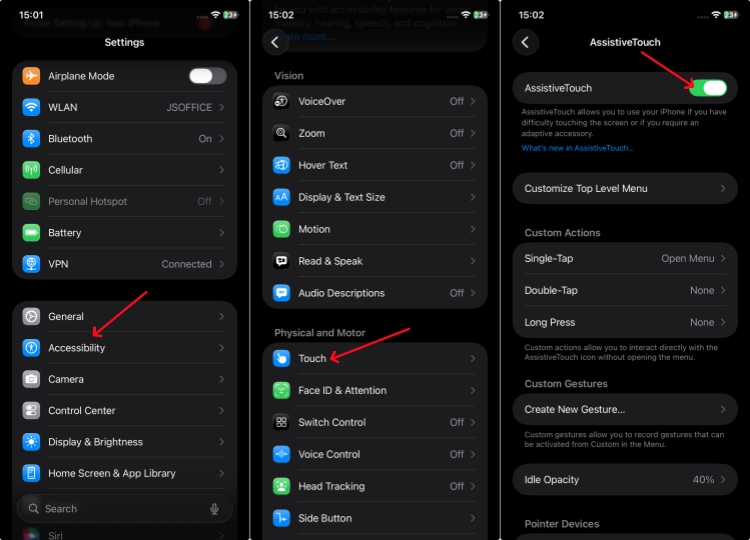
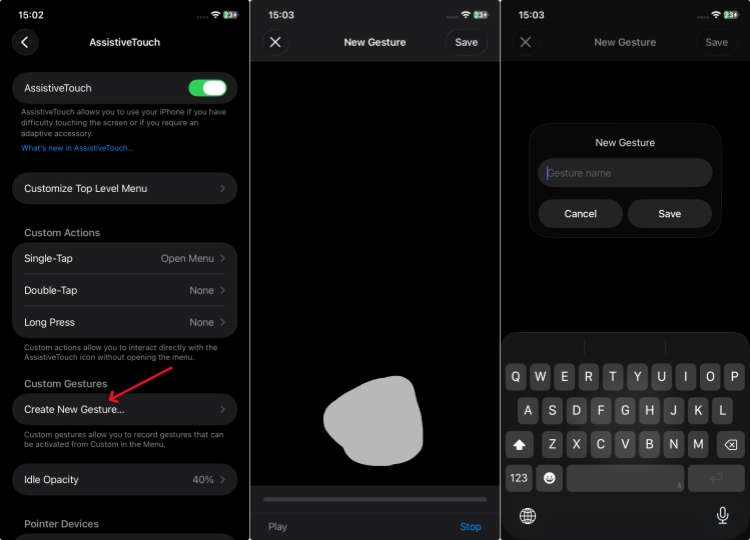
- Step 1: Go to Settings → Accessibility → Touch → AssistiveTouch on your iPhone to toggle it on.
- Step 2: Scroll down the screen and tap Create New Gesture option.
- Step 3: Place your finger in the center of the blank screen (i.e., the position where the Snapchat recording button is located) and hold it down for approximately 10 seconds. Save this new gesture and name it.
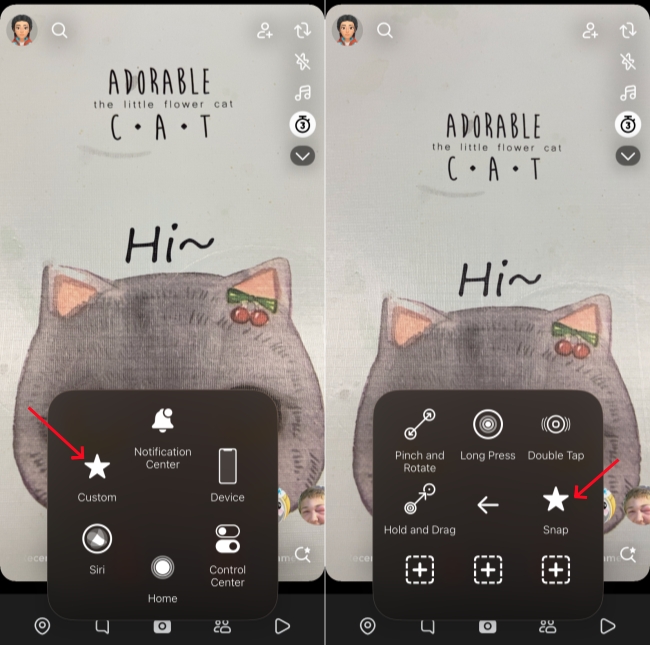
- Step 4: Open Snapchat on your phone, tap the floating AssistiveTouch dot and select Custom → the gesture name you created.
- Step 5: A grey target circle will show up. Drag it over the Snapchat recording button. In this way, you can record without holding the button.
Way 4. Rubber Band Hack to Record on Snapchat without Holding
The Android device does not offer the same accessibility feature as that found in iPhones. If you want to try other methods, you can only use the physical pressing approach, such as holding the Volume Up button with a rubber band. This will solve the problem. However, it is not recommended to do this frequently as it may damage your physical button or the phone case.
- Step 1: Prepare a suitable rubber band.
- Step 2: Wrap it around the phone, applying pressure only to the Volume Up button.
- Step 3: Open Snapchat app. Now the continuous pressure generated by the rubber band will trick the phone into thinking you are holding the button, and start recording until you remove the rubber band.
Way 5. Recording via Snapchat Web (Desktop Solution)
With the introduction of Snapchat for web, many users now view Stories and Chat on computer. If you want to archive lengthy Stories, capture moments hands-free, or produce high-quality video, using a desktop screen recorder is a great workaround. Tools like Joyoshare VidiKit is highly recommended.
More than just a simple screen recorder, it's a comprehensive multimedia suite that excels at capturing online activity without others knowing and in exceptional quality. With VidiKit, you can effortlessly record any on-screen content from Snapchat Web, liberating you from the mobile record button once and for all.


Step 1 Open Screen Recorder in Joyoshare VidiKit
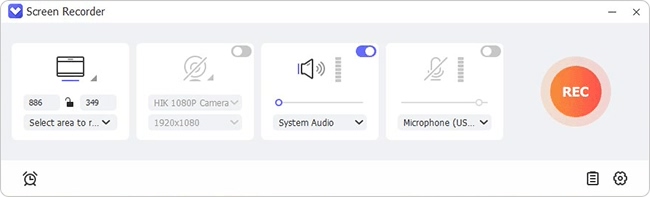
Launch Joyoshare VidiKit on your computer, navigate to Recorder category, and select the Screen Recorder tool from the right panel.
Step 2 Set up Recording Area and Audio
Visit Snapchat official website and log in to your account. Go back to Joyoshare VidiKit, click "Select area to record", and drag the frame to cover the Snapchat web interface. Meanwhile, ensure "System Audio" is enabled so you capture the sound from the Snaps.
Step 3 Customize More Recording Options
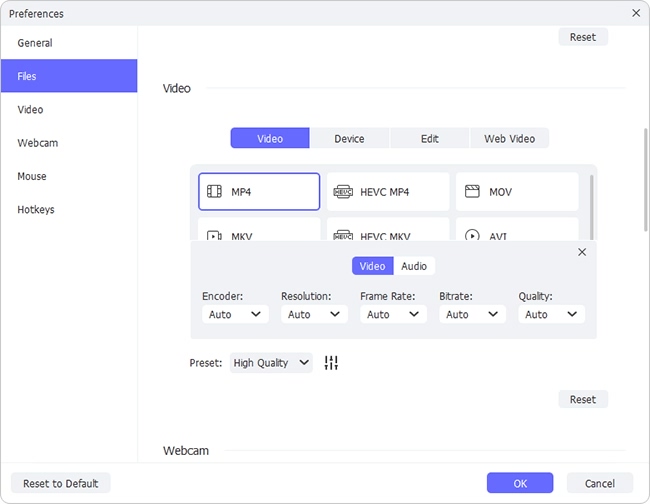
Next, expand your configuration options by selecting the gear-shaped "Preferences" button. From there, you can tailor the recording to your requirements. Simply select your preferred video format, configure webcam settings, assign shortcut keys, and personalize mouse effects, among other adjustments.
Step 4 Start Recording on Snapchat without Holding the Button
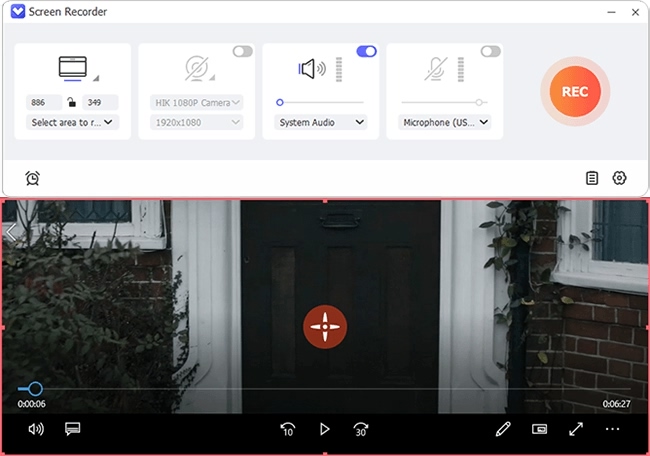
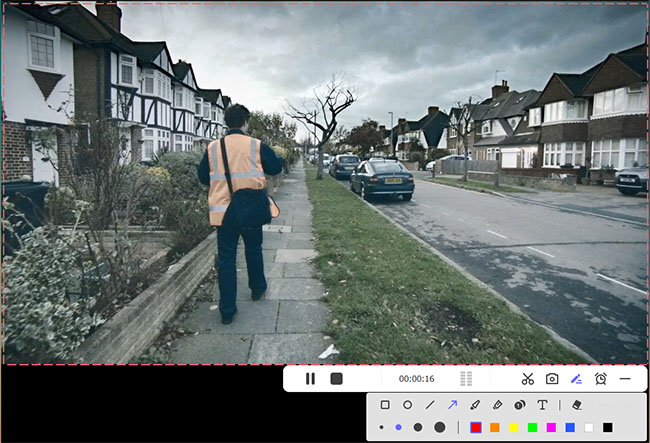
Now click the REC button on Joyoshare VidiKit. You are recording Snapchat Story or Snap completely hands-free. During the recording, it's available to take snapshots, trim video clips, or even annotate in the real time.
Step 5 Preview and Edit Snapchat Recordings
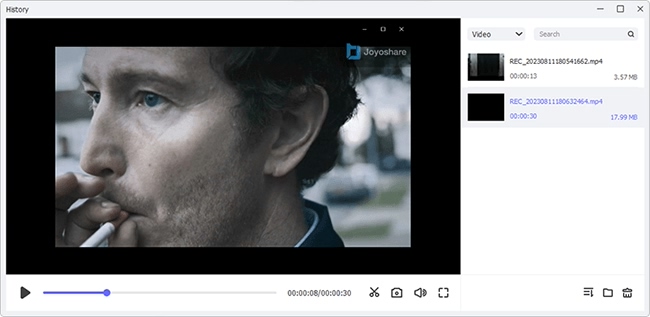
When you are done, click the Stop button. In the History window, you can then preview and edit the video in the way you like.
Conclusion
After learning how to record on Snapchat without holding the button in this post, you can get 5 practical ways, including slide-to-lock feature, Snapchat Video Timer, AssistiveTouch on iPhone, physical pressing on Android, and Joyoshare VidiKit for Snapchat web. No matter which way you finally pick up, you can record hands-free without limiting your creativity and make impressive content.