








 VidiKit (21-in-1 Toolkit) >





Screen recording has become an essential part of our daily digital lives, whether we are creating a tutorial, recording a gaming session, or capturing a bug for tech support. However, capturing unwanted background noise, keystrokes, or unexpected system notifications can quickly ruin a perfect video. If you are wondering how to mute a screen recording, you have come to the right place.
Understanding how to control your audio inputs properly not only saves you from the hassle of re-recording but also ensures your final content looks and sounds professional. In this comprehensive guide, we will walk you through exactly how to mute your microphone and system sounds before you start recording on Windows, Mac, iPhone, and Android. We will also introduce a powerful third-party tool, Joyoshare VidiKit, and show you the easiest ways to silence a pre-recorded video if you forgot to mute it initially.
- Part 1. Why You Might Want to Mute a Screen Recording
- Part 2. How to Mute a Screen Recording Before Capturing
- Part 3. How to Remove Audio from a Screen Recording (Post-Recording)
- Part 4. FAQs About How to Mute a Screen Recording
Part 1. Why You Might Want to Mute a Screen Recording
Before diving into the step-by-step tutorials, it is helpful to understand the common scenarios where knowing how to mute a screen recording becomes crucial:
- Eliminating Background Noise: You are recording a visual tutorial in a noisy environment, such as a coffee shop or a busy household, and do not want background chatter in your video.
- Privacy Concerns: You want to record your screen while listening to a private meeting or a copyrighted song without broadcasting that audio.
- Adding Voiceovers Later: Many content creators prefer to capture high-quality video first and record a clean, scripted voiceover in a professional editing software later.
Now, let us explore how to achieve a completely silent screen capture across different platforms.
Part 2. How to Mute a Screen Recording Before Capturing
The easiest way to get a silent video is to ensure the audio is turned off before you even press the record button. Here is how to mute your screen recording using both native tools and professional software.
1. Mute Screen Recording Easily with Joyoshare VidiKit (Windows & Mac)
While native tools are convenient, they sometimes lack flexibility. If you are looking for a dedicated, all-in-one solution for both Windows and Mac, Joyoshare VidiKit is an excellent screen recorder. It allows you to record your screen without audio effortlessly, giving you separate controls for your microphone and internal system sounds.
- Record Apex Legends without glitch, lag, watermark and time limit
- Support to adjust the capture area, codec, quality, resolution, sample rate, etc.
- Be compatible with Windows, Mac and lots of video formats
- Capture video and audio synchronously or respectively as you want
- Record multiple gameplays on Switch, PS5, Xbox One and many more
Step 1Run screen recorder
Download and launch Joyoshare VidiKit on your computer, then open the Screen Recorder tool.
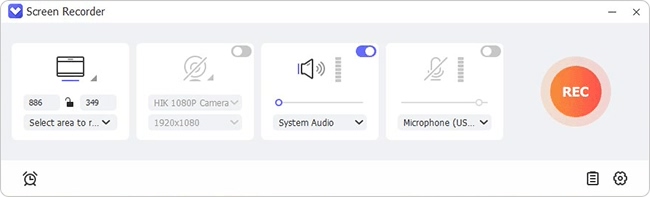
Step 2Confirm preference settings
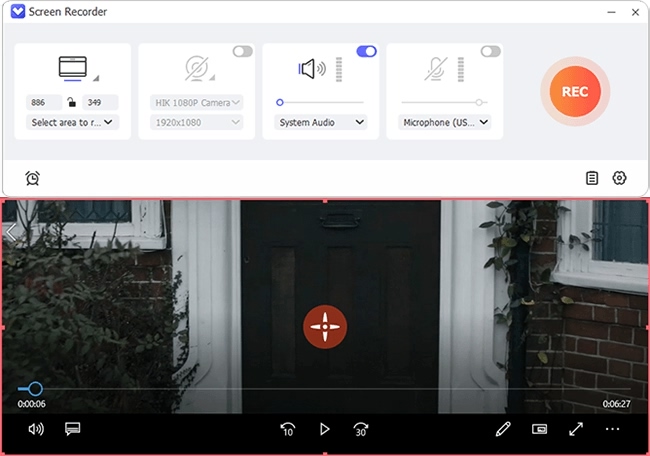
In the main interface, you will see two audio icons in the center: System Audio (a speaker icon) and Microphone. To mute your screen recording completely, click on both the System Audio and Microphone icons to disable them. A slash will indicate they are turned off.
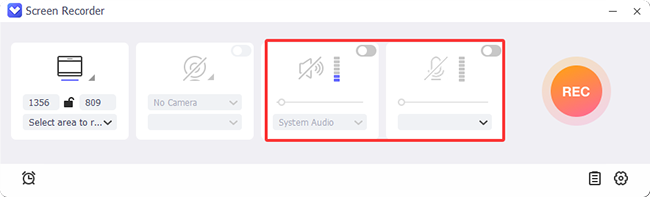
Step 3Adjust the capture area
Select your capture area by clicking the + icon.
Step 4Record screen without sound
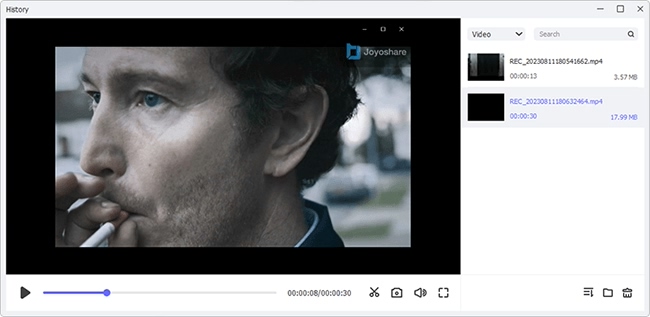
Click the blue REC button. The software will start recording your screen in absolute silence after a 3-second countdown.
2. How to Mute Screen Recording on Mac
Apple’s macOS makes it incredibly simple to record your screen using built-in tools like QuickTime Player or the native Screenshot toolbar.
Using the Screenshot Toolbar (macOS Mojave and later):
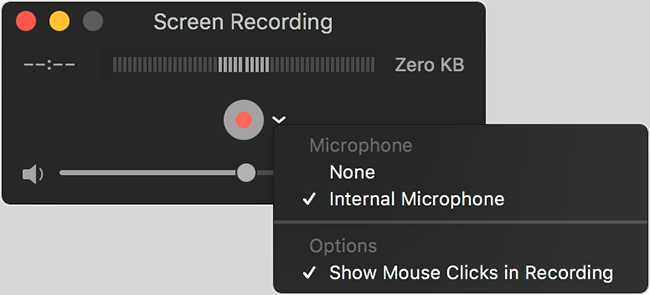
- Step 1: Press [Command + Shift + 5] on your keyboard to bring up the screen capture toolbar.
- Step 2: Click on the Options menu located in the floating toolbar.
- Step 3: Under the Microphone section, select None.
3. How to Mute Screen Recording on iPhone and iPad
iOS devices feature a highly convenient built-in screen recording tool accessible directly from the Control Center. By default, iOS usually records system sounds, but you can easily control the microphone input.
Steps to mute microphone on iOS:
- Step 1: Swipe down from the top-right corner of your screen (or swipe up from the bottom on older models) to open the Control Center.
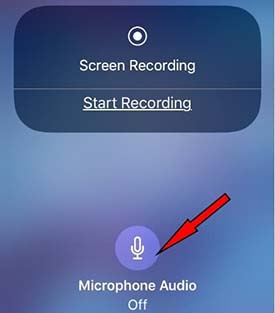
- Step 2: Locate the Screen Recording icon (a solid circle inside a ring).
- Step 3: Instead of tapping it once, press and hold the icon.
- Step 4: A new menu will pop up showing a red microphone icon at the bottom. Tap the Microphone icon so it turns gray and says "Microphone Off."
- Step 5: Tap Start Recording.
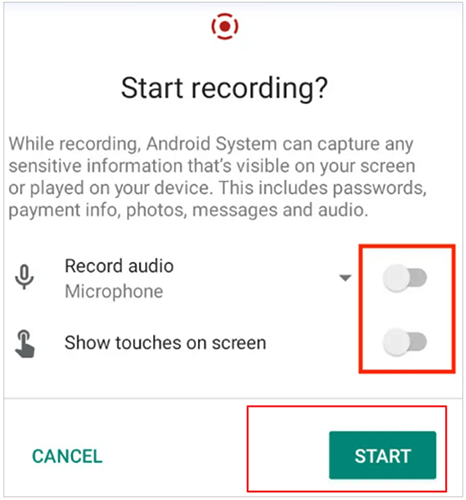
4. How to Mute Screen Recording on Android
Android's native screen recorder (available on Android 10 and newer) gives users excellent flexibility regarding audio capture.
Steps to record silently on Android:
- Step 1: Swipe down twice from the top of your screen to access the Quick Settings panel.
- Step 2: Find and tap the Screen record toggle.
- Step 3: A prompt will appear asking you to choose your sound settings. Tap the dropdown menu next to Record audio.
- Step 4: Select None to ensure absolutely no sound is captured.
- Step 5: Tap Start.
Part 3. How to Remove Audio from a Screen Recording (Post-Recording)
Sometimes you forget to mute your microphone, or you intentionally recorded audio but later decided you want a completely silent video. Learning how to remove audio from a recorded video is an essential skill. Here are the best methods to mute an existing video file.
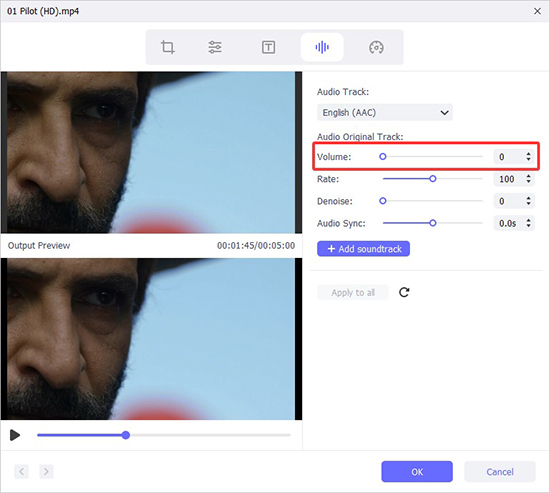
1. Removing Audio Using Joyoshare VidiKit
If you have already recorded a video and want to strip the audio track from it, the editing toolkit inside Joyoshare VidiKit can handle this flawlessly without quality loss.
- Step 1: Swipe down twice from the top of your screen to access the Quick Settings panel.
- Step 2: Find and tap the Screen record toggle.
- Step 3: A prompt will appear asking you to choose your sound settings. Tap the dropdown menu next to Record audio.
- Step 4: Select None to ensure absolutely no sound is captured.
- Step 5: Tap Start.
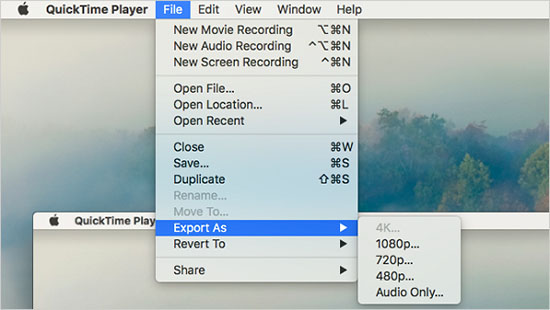
2. Removing Audio on Mac using QuickTime Player
If you are on a Mac, QuickTime Player can strip the audio in seconds.
- Step 1: Open your video file using QuickTime Player.
- Step 2: In the top menu bar, click on Edit.
- Step 3: Select Remove Audio from the drop-down list.
- Step 4: The video will instantly become completely silent.
- Step 5: Go to File > Export As to save your new video.
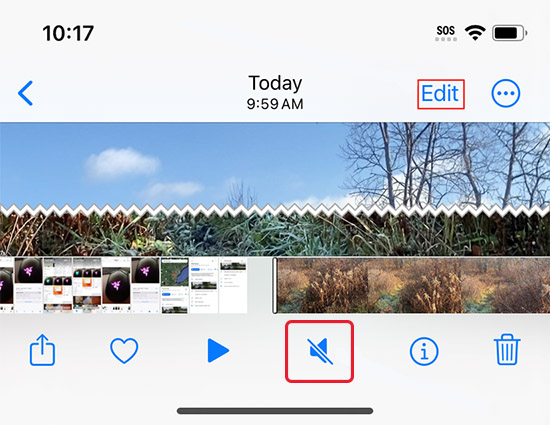
3. How to Mute a Video on iPhone and iPad via the Photos App
You can easily remove the sound track from a screen recording directly within the native iOS Photos application.
- Step 1: Open the Photos app and select the video you want to mute.
- Step 2: Tap the Edit button in the top right corner.
- Step 3: Look at the top left corner of the editing interface for a yellow speaker icon.
- Step 4: Tap the Speaker icon. It will turn gray with a diagonal line through it, indicating the video is muted.
- Step 5: Tap Done to save your changes.
Part 4. FAQs About How to Mute a Screen Recording
Q1. Can I mute my microphone but still record system audio?
Yes. With tools like Joyoshare VidiKit or the Windows Game Bar, you can easily toggle off the microphone while leaving the system audio enabled. On Android, simply choose "Media sounds" instead of "Microphone".
Q2. Why does my iPhone screen recording still have sound even when my phone is on silent?
The physical silent switch on your iPhone mutes notifications, but it does not stop internal app audio (like a playing YouTube video) from being captured. To prevent this, manually turn the media volume all the way down using the side volume buttons before recording.
Q3. Does muting a video reduce its file size?
Yes, but usually only by a small margin. Audio data takes up significantly less space than high-definition video data, but removing it entirely will result in a slightly smaller file size.
Conclusion
Knowing how to mute a screen recording gives you total control over the content you share. Whether you prefer to proactively disable your microphone using native tools, leverage professional software like Joyoshare VidiKit for advanced audio control, or remove the audio track after the fact, you now have the exact steps to do it flawlessly. Follow these methods to confidently capture high-quality, distraction-free videos every single time.