








 VidiKit (21-in-1 Toolkit) >





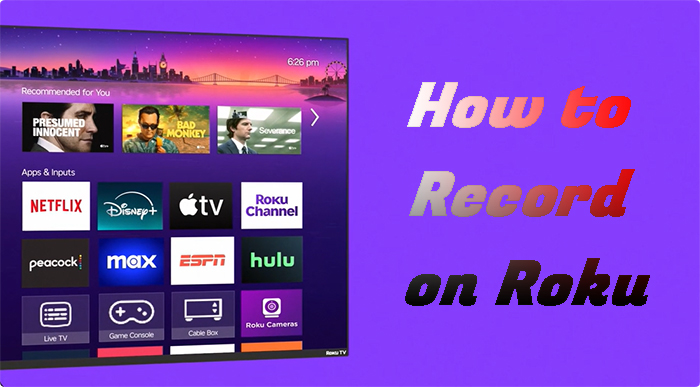
As one of the leading streaming services, Roku makes itself a unified platform to stream from thousands of channels and apps, including Netflix, YouTube, Hulu, etc. It allows you to watch favorite movies, shows, broadcasts, or live sports. However, sometimes you may have no time to what live content and want to keep whatever you like for offline playback. While Roku makes streaming simple, recording can seem complicated. Can you record shows with Roku? How do you record on Roku? This post will walk you through all details.
- Part 1. Can You Record on Roku?
- Part 2. How to Record on Roku with Cloud DVR
- Part 3. How to Record from Roku without Cloud DVR
- Part 4. FAQs about Roku Recording
Part 1. Can You Record on Roku?
Roku players, sticks, and TVs are streaming devices, which have no internal hard drives or built-in DVR software for recording video. So, you cannot record directly onto the Roku device itself. But luckily, there are different solutions that help you with recording Roku shows and other content. Depending on the streaming channels you are using, you can record Roku TV shows and movies with cloud DVR services. Besides, a professional screen recorder is available to record from Roku.
Part 2. How to Record on Roku with Cloud DVR
Roku brings together many channels and mainstream services, such as Netflix, Hulu, Disney+, YouTube, and more. With supported Cloud DVR capability from these Roku channels, you can record shows and movies easily.
- Popular Roku Apps with Cloud DVR:
- • YouTube TV: Offers unlimited DVR storage, and recordings are saved for up to 9 months.
- • Hulu + Live TV: Comes with unlimited cloud DVR storage.
- • Sling TV: Includes 50 hours of free DVR storage, which you can upgrade for a fee.
- • FuboTV: Provides 1000 hours of cloud DVR storage.
1.1 How to Record on YouTube TV
YouTube TV offers one of the simplest recording processes. Instead of recording single episodes, you add an entire series or event to your library, and it records everything for you.
- Step 1: Open the YouTube TV channel on your Roku.
- Step 2: Navigate to a program you want to record, either from the "Live" guide or by using the Search function.
- Step 3: Select the show, movie, or sports team. On the details page, click the Add (+) icon labeled "Add to Library".
- Step 4: The program is now set to record. You can find all your recorded content in the "Library" tab on the main menu.
1.2 How to Record on Hulu + Live TV
Hulu's Cloud DVR is seamlessly integrated into its "My Stuff" feature, making it easy to manage both on-demand content and your personal recordings.
- Step 1: Launch the Hulu app on your Roku.
- Step 2: Find the show, movie, or event you want to record.
- Step 3: From the details page, select "+ My Stuff" or "Record". If it's a series, Hulu will ask if you want to record new episodes only or all episodes.
- Step 4: To access your recordings, navigate to the "My Stuff" hub from the main menu and look for the "Recordings" section.
1.3 How to Record on Sling TV
Sling TV provides a more traditional DVR experience where you can record individual episodes or entire series.
- Step 1: Open the Sling TV channel on your Roku.
- Step 2: Browse the "Guide" or search for the program you want to capture.
- Step 3: Select the program. On the information screen, you will see a "Record" button.
- Step 4: Click "Record" and Sling will give you the option to record just that episode, all new episodes, or all episodes of the series.
- Step 5: Your recordings are stored in the "DVR" tab on the main navigation bar.
1.4 How to Record on FuboTV
FuboTV is a sports-focused service with robust DVR capabilities.
- Step 1: Open the FuboTV app on your Roku device.
- Step 2: Find a game or show from the "Guide," "Sports," or "Shows" tabs.
- Step 3: Select the program you want to record. You will see a "Record" option on its details page.
- Step 4: FuboTV will confirm if you wish to record the single event or, for a series, all upcoming airings.
- Step 5: All your saved content is available under the "My Stuff" tab, in the "Recordings" section.
Part 3. How to Record from Roku without Cloud DVR
As you can see, though some popular streaming services provide Cloud DVR capability, there are recording time limits or subscription requirements to upgrade your plan. In this case, how to record from Roku?
If you want to keep your favorite movies, TV shows and live sports on your devices permanently, here Joyoshare VidiKit is a great solution. A powerful yet easy-to-use tool, it is designed to capture high-quality video from any streaming source on your computer, creating a standard video file (like an MP4) that you can watch anytime, on any device. Importantly, there is unlimited recording time, ensuring smooth recording experience without black screen.


Step 1 Get Roku Shows Ready
Visit Roku official channel in your web browser, sign into your Roku account and prepare streaming content.
Step 2 Open Screen Recorder in Joyoshare VidiKit
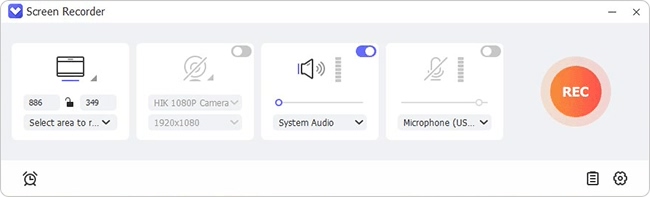
Download and launch Joyoshare VidiKit on your computer. Select the Screen Recorder under Recorder panel.
Step 3 Choose a Recording Area
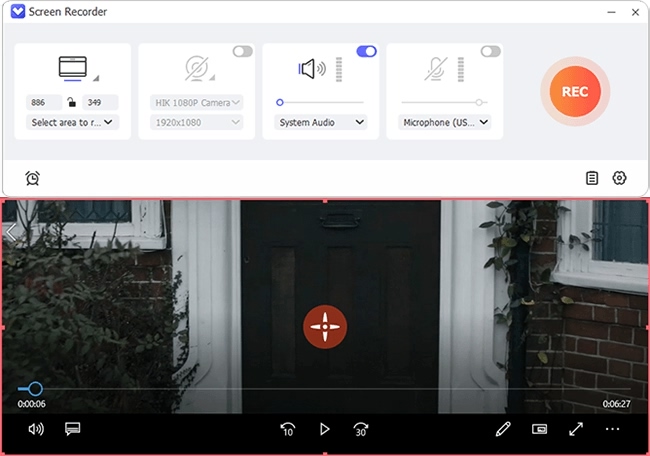
Click Select area to record and draw a selection box around the video window playing the Roku content. Then, enable "System Audio" and make sure the "Microphone" is turned off to avoid recording background noise.
Step 4 Set Recording Preferences
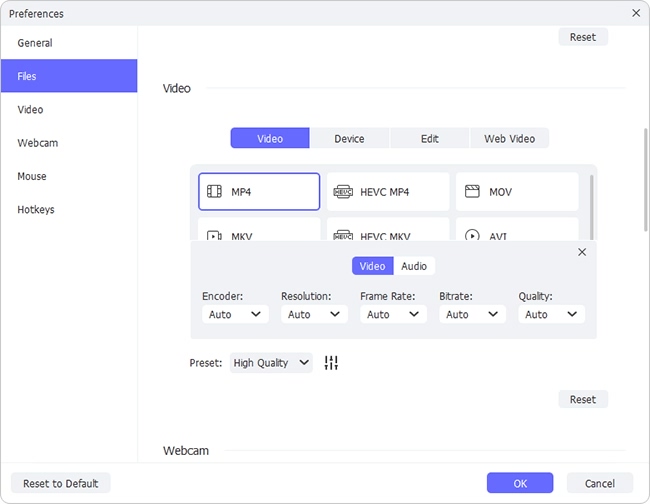
To check and confirm more recording options, simply click the gear-shaped Preferences icon at the right bottom. You can choose an output format, customize specific parameters, set hotkeys, and more in the way you like.
Step 5 Record Roku Stream
Start playing your Roku show on the computer and click the "REC" button in VidiKit. After a short countdown, the software will begin capturing everything in the selected area.
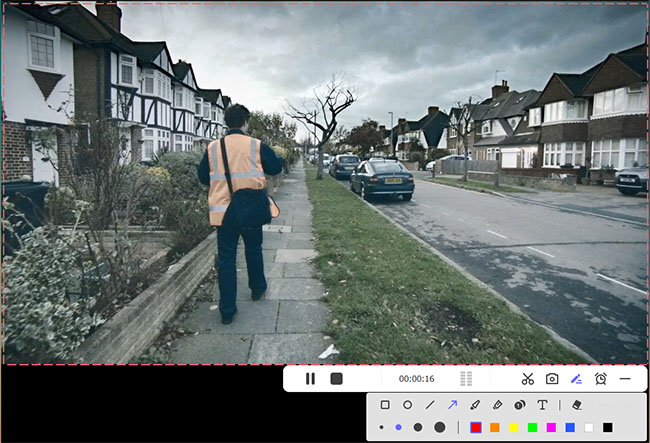
Step 6 Stop and Save Roku Video
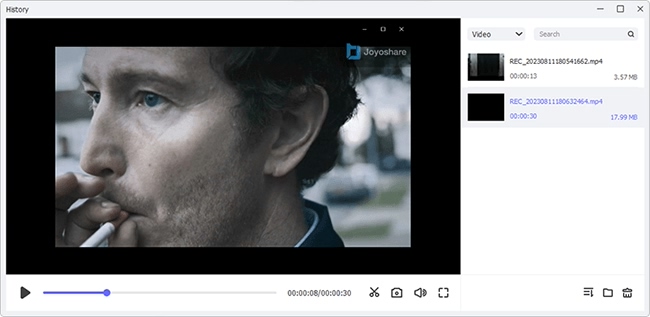
Once the target show is over, click the Stop button. Your recording will appear in the "History" list. You can now preview your video, trim any extra clips, and find the saved file on your computer.
Part 4. FAQs about Roku Recording
Q1: Does Roku have a built-in DVR?
A: No. Roku streaming player, stick, or TV model don’t offer a built-in DVR or internal hard drive for recording. Recording capability is handled by individual streaming apps (like YouTube TV) or external software.
Q2: Is it legal to record from Roku?
A: Using a Cloud DVR feature that is part of a paid subscription service is 100% legal. Using a third-party screen recorder to capture content for your own personal, private use is a legal gray area generally considered acceptable under fair use principles. However, sharing or distributing this recorded content is a violation of copyright law.
Q3: Do my Cloud DVR recordings expire?
A: Yes, most of recordings will expire after a certain period. YouTube TV and Hulu + Live TV save recordings for 9 months. On Sling TV and FuboTV, recordings are saved indefinitely as long as your account remains active.
Conclusion
While your Roku can't record on its own, you have powerful options available. For the easiest, most integrated experience, especially for live TV, subscribing to a service with a Cloud DVR is the best choice. For ultimate control and the ability to create permanent video files from any app, using a quality screen recorder like Joyoshare VidiKit on your computer is the perfect solution.